Community

Share your best AI workflow. We could show it to 2M+ people.

Every day, we feature the community's top-voted AI workflow in The Rundown newsletter. One post will put you on the radar of top founders, hiring managers, and operators across the industry.

Welcome!

Build an AI Knowledge-Transfer GPT for Employee Offboarding

I built a custom AI knowledge-transfer GPT designed to prevent institutional knowledge from walking out the door when an experienced employee leaves. The trigger was an experienced operations manager preparing to leave the organization. I realized that while we had procedures, files, emails and account documentation, a huge amount of operational knowledge existed only in that manager’s head: customer preferences, recurring staffing problems, site-specific quirks, key relationships, historical issues, workarounds, lessons learned and the small details that can take a replacement months to discover. My goal was to capture that knowledge and turn it into an interactive resource for the incoming operations manager. First, I conducted and recorded an in-depth interview with the departing manager. Instead of only asking standard turnover questions, I had them walk through the operation as if they were personally training their replacement. We discussed customers, employees, locations, scheduling, recurring problems, escalation procedures, communication preferences, historical decisions and things they believed a new manager might not realize immediately. I then transcribed the conversation and used AI to analyze the interview for knowledge gaps. I asked the AI to approach the transcript from the perspective of someone taking over the job and identify important questions that had not yet been answered. Using those gaps, I had AI create customized knowledge-transfer questionnaires specifically for the departing manager. These asked more targeted questions such as: What problems happen repeatedly? What customer preferences are not documented? What exceptions exist to normal procedures? What mistakes is a new manager likely to make? What information exists only in your memory? What would you make sure your replacement understood during their first 30 days? The departing manager completed those documents, giving me another layer of institutional knowledge that would normally be lost. Next, I organized the interview transcript, completed questionnaires, operational procedures, account information, contacts, historical notes and other relevant documents into a knowledge base. I uploaded that information into a custom GPT and instructed it to function as an operational knowledge-transfer assistant. The GPT was told to base answers on the captured information, not invent answers when information was missing, and clearly tell the user when something needed to be verified. The incoming operations manager can now interact with that knowledge conversationally. Instead of searching through folders or wondering who to ask, they can say things like, “I’m meeting with this customer tomorrow. What should I know?”, “Has this location had staffing problems before?”, “Why do we handle this account differently?”, or “What should I watch for during my first month?” The GPT is now being used by the incoming manager as an ongoing reference tool. The result is essentially a searchable, interactive version of the institutional knowledge that previously would have disappeared with the departing employee. It reduces the “I don’t know what I don’t know” period of starting a new position, shortens the learning curve, improves operational continuity and helps prevent the next person from having to relearn years of lessons through trial and error. The same workflow could be recreated for retiring executives, salespeople, plant managers, administrators, project managers, maintenance supervisors or anyone whose experience contains valuable institutional knowledge. The employee can leave. Their knowledge doesn’t have to.

Tools used
Industry
#customgpt#employeeonboarding#institutionalknowledge#knowledgemanagement#operations
6

Build an AI Project Management App for a Church Renovation

I’m 71 years old, retired from owning a large cattle-feeding operation, and fairly new to AI and software development. I’ve discovered that I really enjoy using AI to build practical tools in Replit. My latest project is an app for our church to help us oversee a $13.5 million renovation of a 65,000-square-foot former movie theater into our new church facility. I’m not a programmer or a construction expert, so I’m using AI to help bridge both gaps. I built the app almost entirely by describing in plain English what I wanted it to do, testing what it built, and working back and forth with AI to improve it. The app uses AI to read meeting notes, emails, texts, and general project updates and identify decisions, action items, important dates, budget changes, and project events. Nothing is accepted automatically. I review, edit, approve, or reject what AI finds before it becomes part of the project record. The app also keeps our budgets, documents, meetings, and project history together. My goal isn’t to replace our project manager or construction software. I want to see whether someone my age, with no programming or construction background, can use AI to build a useful tool for helping an owner understand and manage a complicated real-world project. Step-by-step: 1. I described in plain English what I wanted the app to do. 2. I used AI in Replit to build the app based on those descriptions. 3. I tested what AI built and worked back and forth with it to improve the app. 4. I designed the app to read meeting notes, emails, texts, and general project updates. 5. I use it to identify decisions, action items, important dates, budget changes, and project events. 6. I review, edit, approve, or reject every item before it becomes part of the project record. 7. I use the app to keep our budgets, documents, meetings, and project history together.

Tools used
Industries
#replit
2

Use AI to Triage Commercial Vehicle Maintenance Reports

Commercial vehicle maintenance information is often fragmented across driver reports, warning lights, fault codes, inspections, repair records, and vehicle history. This makes it difficult for smaller fleets to decide whether a vehicle can continue operating, requires scheduled repair, or should be stopped immediately. We built TruckFixr Fleet AI to turn an unstructured driver report into a clear, reviewable maintenance action. The workflow begins when a driver submits symptoms, photos, fault codes, and vehicle information through a mobile-friendly form. AI and optical character recognition extract the relevant details and organize them into a structured maintenance case. The report is then evaluated alongside available vehicle history and previous repairs. The workflow provides decision support through three practical actions: continue operating while monitoring, schedule an inspection or repair, or stop and escalate for immediate professional assessment. Final safety decisions remain with authorized fleet or maintenance personnel. After an inspection or repair, the confirmed cause, work performed, and outcome are recorded, creating a more complete vehicle history for future cases. The general workflow can be recreated using a mobile form, OCR, a vehicle-history database, an AI model, automation software, and a human-review dashboard. Step-by-step: 1. A driver submits symptoms, photos, fault codes, and vehicle information through a mobile-friendly form. 2. AI and optical character recognition extract the relevant details and organize them into a structured maintenance case. 3. The workflow compares the report with available vehicle history and previous repairs. 4. The system provides one of three decision-support actions: continue operating while monitoring, schedule an inspection or repair, or stop and escalate for immediate professional assessment. 5. Authorized fleet or maintenance personnel make the final safety decision. 6. After inspection or repair, the confirmed cause, work performed, and outcome are recorded in the vehicle history. TruckFixr has used this approach to support more than 100 vehicle-issue resolutions in early fleet pilots, helping fleets identify problems earlier, prevent avoidable breakdowns, and keep vehicles moving safely.

Tools used
Industries
#truckfixr
2

Log your day by voice and wake up to a fully organized health tracker—completely free

I track my recovery daily—mood, energy, focus, activities, medications, and reflections—but typing everything out never lasted more than a few days. So I built a voice-first pipeline: I talk, and it automatically becomes a clean, organized Google Sheet. Step-by-step: 1. I built a free iPhone Shortcut that records my voice when I say, “Hey Siri, Log,” and sends it to the Gemini endpoint. 2. Gemini transcribes the audio and extracts structured details, including wake time; mood, energy, and focus scores; activities with categories and durations; medications; and reflections. 3. Everything is automatically organized in the appropriate place in a Google Sheet: a daily summary, activity log, metrics log, medications log, and clean, human-readable digest for each day. 4. I can say “yesterday” or “on Monday” to log something I forgot, and it files the entry under the correct date. 5. I connected the completed sheet to a separate AI chat scoped specifically to reflection, so I can ask questions such as how my exercise correlates with my mood or how my energy trends over the month. The best part is that the entire workflow runs on free tiers—Google Sheets, Apps Script, iPhone Shortcuts, and Gemini’s free API tier—so there’s zero cost to build or run it. The result is a daily tracker that takes seconds to update from anywhere, requires no typing, and turns my entries into a dataset I can actually learn from—all without writing a traditional app.

Tools used
Industry
#free#gemini#healthtech#logs#tracking

Catalog 60+ Physical Items with Gemini and a Whiteboard Grid

My mother recently moved into a retirement suite, which meant downsizing her possessions. We ended up with dozens of physical items she no longer had space for, and we wanted her children and grandchildren to have an opportunity to sign up for the family items they loved before anything was donated. I needed a way to catalog everything quickly, share the information remotely, and verify that we weren't accidentally giving away items of significant value. I tested a physical-to-digital workflow using Gemini. Instead of putting the items in a pile or typing out endless lists, I drew a numbered grid on a large whiteboard, placed one item in each square, and took a few photos. Gemini identified the objects by grid position, categorized them, estimated their market values, and built a ready-to-use spreadsheet with a signup column. The physical staging took about 30 to 45 minutes, depending on how many items were on that particular board. The entire digital workload—including cataloging, valuing, formatting, and creating the spreadsheet—took under 10 minutes. The process turned an overwhelming chore into something manageable and produced an end product that was easy for everyone to use. Step-by-step: 1. I drew a simple grid on a whiteboard, numbered each box, and placed one item in each square before taking photos. 2. I uploaded the photos to Gemini and prompted it to identify every item by its board name and grid number. 3. I asked Gemini to classify each item into logical groups, such as Glassware, Ceramics, and Woodcraft, and provide quick, realistic resale-market valuations based on visual condition. 4. I asked Gemini to generate a downloadable Excel file formatted as a signup catalog, with columns for Item ID, Grid Number, Description, Category, Estimated Value, and a blank "Claimed / Signed Up By" column for family members to enter their names. 5. I uploaded the file to Google Drive, converted it to Google Sheets, and added a note at the top explaining how tie-breakers would work if two family members wanted the same item.

Tools used
Industry
#communitysignup#decluttering#downsizing#familyassetsharing#inventorycatalogue
7
pro The Rundown team

Summarize a creator’s latest YouTube videos with Gemini

YouTube is one of the best free education platforms out there, but the problem is that it takes a ton of time to sit through long videos just to find the few ideas that actually matter. That's where Gemini has been really useful for me. Since it's built into Google, I can use it to quickly summarize a specific YouTube video, or even scan the last 5–10 videos from a creator to pull out the key takeaways. Instead of spending hours watching everything, I can quickly understand the main ideas, find the best nuggets, and decide what's worth digging into deeper. It's basically a shortcut for learning from long-form content without consuming every minute of it. Step-by-step: 1. I gave Gemini the URL of a specific YouTube video when I wanted a fast summary of one piece of content. 2. For a broader view, I asked it to scan the latest five to ten videos from the same creator. 3. I had it extract the main ideas and strongest takeaways from each video. 4. I compared the summaries to find recurring themes and the most useful nuggets. 5. I used that overview to decide which videos were worth watching in full.

Tools used
Industry
#learning#research
2

Compare AI-Built Wildfire Websites for 6th Grade Science

For the start of the new school year, I wanted to use the current eastern Washington wildfires near Spokane with my two sixth-grade science classes. I wanted an AI tool to create a website I could upload to my hosting service. The site needed to provide daily updates from verified news sources, along with air quality data comparing Spokane in eastern Washington, Kirkland near Seattle, and Chimacum, where we live, on the western side of the state. I also wanted to include a simulation where students could change different variables to see how they affect the direction of the smoke and air quality. I could not decide which AI service to use, so I entered the same prompt into my personal paid Claude and Gemini Spark accounts, as well as my free teacher ChatGPT and Claude accounts, to compare which one created the best site for students. Here is the prompt I used: "Create a dynamic website with information of the Spokane, WA 2026 wildfires. Information include only verified facts from credible news sources. Information needs to be updated from when the largest fire started until it is completely put out. At that point, this website is complete and done. Include a page with air quality data. Provide air quality data on a daily basis from the onset of the fire to the end of the fire. Include Spokane, Kirkland, and Chimacum to compare the air quality from eastern WA near the fire, mid WA, and western WA. Include factors that explain the air quality such as winds, inversion, altitude of smoke and any other relevant data that students can view to answer questions. Provide a way for students to click on different variables to see how different factors affect the fire, direction of smoke, and air quality. Use the /inversa-design skill to make the website." Here is a portal page with links to all four sites: https://educatoral.com/2026SpokaneFire/ Step-by-step: 1. I identified the eastern Washington wildfires near Spokane as a topic for my two sixth-grade science classes. 2. I defined the website requirements: verified news updates, daily air quality data, comparisons among Spokane, Kirkland, and Chimacum, and a student-facing smoke and air quality simulation. 3. I used the same prompt with my paid Claude and Gemini Spark accounts and my free teacher ChatGPT and Claude accounts. 4. I compared the sites created by the four AI accounts to determine which one would be best to use with students. 5. I collected links to all four sites on this portal page: https://educatoral.com/2026SpokaneFire/

Tools used
Industry
#data#science#spokanewildfires2026#weather
2

Build an n8n AI Newsletter Digest in Gmail

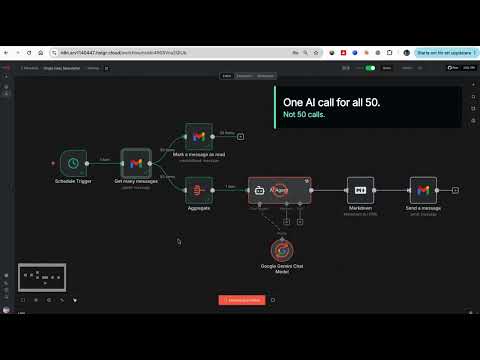
One email instead of 50: an n8n workflow that reads all my AI newsletters and sends me a single daily digest in under 2 minutes THE PROBLEM: I subscribe to dozens of AI newsletters. The Rundown, Superhuman, TLDR, The Neuron, AlphaSignal, TheSequence, Turing Post and many more. Reading them took hours every day, and most of them cover the same three stories. I wanted the coverage without the reading time. So I moved every subscription to a dedicated Gmail address and let n8n read that inbox for me. It has run daily since February 2026 and I now read one email a day instead of 50. STACK: n8n (hosted on Hostinger), Gmail, Google Gemini 2.5 Pro. HOW TO BUILD IT: STEP 1: Create a dedicated Gmail account and move every newsletter subscription to it. This one decision makes everything else simple. Your personal inbox stays clean and the workflow never touches mail that is not a newsletter. STEP 2: Schedule Trigger node, daily at 08:00. Set the workflow timezone (mine is Europe/Stockholm) or the trigger runs on server time. STEP 3: Gmail Get Many Messages node on the newsletter account. Filter by read status: unread. Return All: on. Simplify: OFF. That last toggle matters, see gotcha 2. STEP 4: Connect two branches off that node. Branch one is a Gmail Mark As Read node with message ID {{ $json.id }}. Unread is the whole state system: each run only fetches what arrived since the last run. No database, no date filters, no dedupe logic. STEP 5: Branch two is an Aggregate node. Aggregate the "html" field of every email into one array field called CombinedNewsletter. This means one AI call per day instead of one call per email. STEP 6: AI Agent node with a Google Gemini Chat Model attached (models/gemini-2.5-pro). Turn on Retry On Fail with 5000 ms between tries. The prompt: Below is all the news in html format. Only use what is provided; if the HTML looks cut off, still summarize everything you can see. {{ $json["CombinedNewsletter"].join('\n\n').substring(0, 250000) }} The substring cap is load bearing, see gotcha 1. System message (verbatim, numbering written as (1) so this form does not strip it): "You will receive ALL the AI newsletters from the past day in HTML format. Your task: (1) Extract every distinct news item (no duplicates, even if repeated in multiple newsletters). (2) For each item, find: a short, human-readable title, the best URL, a one-sentence summary (max 25 words). (3) Estimate popularity based on how many newsletters mention it. If an item appears only once, rank by how interesting the general public might find it. Output format (Markdown only): # Daily AI News Digest, then '## Top headlines' listing the 5 most popular/important items as 'Title Summary sentence', then '## More news' listing all remaining items in the same format. Rules: Always use Markdown links like Title, never show bare URLs. Do not skip any news item. Do not add any commentary, explanations, or closing text beyond the structure above." STEP 7: Markdown node, mode Markdown to HTML, destination key combinedHTML. STEP 8: Gmail Send node to your personal address. Subject: Here's ALL the AI News! {{now.toFormat('yyyy-MM-dd')}}. Wrap {{ json.combinedHTML}} in a full HTML document with inline CSS: white card, max-width 720px, system fonts, styled links. See gotcha 4. FOUR THINGS THAT COST ME HOURS: (1) Raw newsletter HTML broke Gemini. The workflow refused to execute with a payload limit error. Newsletter HTML is enormous: tracking pixels, nested tables, inline styles. Fifty of them concatenated is millions of characters. The .substring(0, 250000) cap in the prompt fixed it, and the "if the HTML looks cut off, still summarize" line tells the model how to handle the truncation. (2) Gmail's Simplify toggle is on by default and strips the message body. Gemini kept receiving empty or gutted content and no error explained why. Turn Simplify off to get the full html field. (3) Gemini rate limits AND timeouts both hit on big runs. Retry On Fail with a 5 second wait fixed both. Without it, one 429 kills the whole morning digest. (4) Sending the model's raw markdown as email looked broken in Gmail. Two part fix: a Markdown to HTML node, then a proper HTML template with CSS in the send node. RESULT: the latest real run turned 50 unread newsletter emails into one clean digest in less than 2 minutes (1 minute 27 seconds to be exact). Running every morning since February 2026. Honest failure mode: mark as read runs as a parallel branch, so if Gemini fails after all retries, that day's emails are already marked read and drop out of tomorrow's digest. I accepted that trade off. The alternative is duplicate items on every retry, and one missed day costs less than a digest full of repeats. Rebuild time: about 30 to 45 minutes if the dedicated inbox already exists.

Tools used
Industry
#dailydigest#emailautomation#informationoverload#newsletter#summarization
6

Built Timelanes: Turn any topic into a sourced, shareable timeline in seconds

I built Timelanes so you can type any topic into one text box, such as “The Space Race” or “my grandfather's war years,” and generate a visually engaging, sourced, shareable timeline in seconds. Step-by-step: 1. Type a topic into the text box. 2. Let AI generate the timeline with dated events, short descriptions, and source links. 3. Review citation coverage for each event to see what's verified at a glance. 4. Edit and reorder events, add images and milestones, and choose a theme. 5. Publish the timeline with one click to create a shareable page and embeds that auto-render in Substack and Notion. 6. Export the timeline as a PDF, Markdown file, or CSV. Bonus: Compare mode places two or more timelines on one shared axis so overlaps stand out.

Tools used
Industry
#aiapp#citations#research#timelines#visualization
6

Unclench: An app for tension headaches and neck tension

I created an iPhone bookmark that looks and works like an app, using Claude. It includes massages, habits, and stretches targeting the shoulders, neck, jaw, and temples for when I feel a tension headache coming on. I took screenshots from a Gemini conversation about preventing and treating tension headaches, then uploaded them to Claude. I asked Fable to create a simple, accessible app I could use when I noticed my shoulders starting to rise or felt a headache coming on. Some stretches and massages include timers and tell me how many repetitions to do. It also reminds me to stop clenching my teeth and frowning while I’m working. Step-by-step: 1. I took screenshots from a Gemini conversation about preventing and treating tension headaches. 2. I uploaded the screenshots to Claude. 3. I asked Fable to create a simple, accessible app based on that information. 4. I saved the result as an iPhone bookmark that looks like an app. 5. I use the stretches, massages, and habits when I notice shoulder tension or a headache coming on. 6. I follow the built-in timers and repetition guidance, while using the reminders to stop clenching my teeth and frowning when I’m working.

Tools used
Industry
#clenching#habits#stressrelief#tension
5
The Rundown team

Turn 100 blood-work markers into a structured wellness roadmap

I used Gemini to analyze my blood work covering some 100 parameters. It instantly extracted and categorized all—from cholesterol to iron levels—into a clear, structured table, identified subtle deviations (such as slightly elevated eosinophils) and explained the clinical significance of each in plain language. Finally, it translated these data points into a personalized wellness roadmap, suggesting natural lifestyle adjustments to optimize health markers. Step-by-step: 1. I uploaded the blood-work report containing roughly 100 different parameters to Gemini. 2. I asked it to extract every result and organize the markers into a clear, structured table. 3. I had it identify deviations and explain the possible significance of each one in plain language. 4. I asked for a synthesized wellness roadmap focused on natural lifestyle adjustments. 5. I used the organized result to understand the report and prepare for more informed health conversations.

Tools used
Industry
#analysis#wellness
0

Replace an AI File-Transfer Workflow with a Python Desktop App

Management pushed for an AI workflow to handle a massive daily headache: staff were manually searching for, copy-pasting, and moving hundreds of files listed in Excel. I was assigned to train the team to use the AI workflow. As soon as training started, though, it became clear that this was the wrong tool for the job. Forcing non-technical staff through a lengthy process of opening browsers, writing prompts, uploading spreadsheets, and dealing with token friction created more work than the manual process. It also introduced token costs, speed bottlenecks, and hallucination risks involving local file paths. The data was already structured. It did not need semantic intelligence; it needed deterministic speed. So AI got fired from running the task. Instead, I used AI as the developer. In less time than it would have taken to train one person, I had Gemini code a standalone Python desktop app and compile it into a simple executable. Now, with zero training required, staff drag and drop their Excel list into the app, choose a destination folder, and click Run. The app executes the transfers for hundreds of files, verifies every arrival on disk, and logs missing files in seconds. The result: $0 in API tokens, two hours recovered each day, zero path errors, and 100% team adoption. A two-second drag-and-drop will always beat a multi-step prompt-engineering exercise. As a side effect, the experience also supported AI adoption. Staff are now seeing more ways AI can help rather than hinder their work. Step-by-step: 1. I evaluated the proposed AI workflow for manually searching, copy-pasting, and moving hundreds of files from Excel lists. 2. I identified that training non-technical staff to open browsers, write prompts, upload spreadsheets, and manage token friction added more work, costs, bottlenecks, and local-file-path hallucination risks. 3. I used Gemini as the developer to create a standalone Python desktop app and compile it into a simple executable. 4. I had staff drag and drop their Excel list into the app, select a destination folder, and click Run. 5. The app transferred hundreds of files, verified each arrival on disk, and logged missing files in seconds. 6. I measured the results: $0 in API tokens, two hours recovered daily, zero path errors, and 100% team adoption.

Tools used
Industry
#adoption#code#gemini#python#workflow
5

Build a Book-Lending App with Lovable, Claude, and Gemini Without Traditional Coding

I kept forgetting who I had lent books to, and spreadsheets felt like overkill. So I built Runo, a book-lending app for friends, without traditional coding. Runo (runo.club) is a web app where I can catalog my home library, get a unique shareable link, and let friends browse my books and request to borrow them. I can approve or decline each request with one click. Step-by-step: 1. I used Claude to think through the feature set, data model, and UX flow before writing a single prompt. This helped me avoid building the wrong thing first and gave me a clear blueprint for the Lovable prompts that followed. 2. I used Claude to create precise, narrowly scoped prompts for Lovable, with each prompt focused on a single change so existing functionality would be less likely to break. This significantly conserved Lovable credits. The React, TypeScript, and Supabase stack came out of the box. 3. I added two ways to scan books instead of requiring users to type titles manually: - Barcode scanner: Point the camera at an ISBN barcode to autofill the title, author, and cover using the Open Library API. - Cover photo scanner: Photograph the cover so Gemini 2.5 Flash can extract the title and author in under 2 seconds. 4. I routed the cover scanner through a Supabase Edge Function using Lovable’s AI Gateway, so the API key never touches the client bundle. 5. For every bug fix and feature, I followed the same iteration loop: describe the problem to Claude, get a precise Lovable prompt, push the changes to GitHub, and let Lovable auto-sync them. Claude and Lovable’s bidirectional GitHub sync made the process feel like pair programming. Tools used: Lovable, Claude (Sonnet), Gemini 2.5 Flash (via Lovable AI Gateway), Supabase, and GitHub. Live at: runo.club — public beta and free to use. Feedback welcome. #appbuilding #vibecoding #buildinpublic #lovable #nocode

Tools used
Industries
4

Semi-Automate Live Stream Summaries with Gemini, Blender, and Whisper

“A good engineer knows when not to use AI.” I built a semi-automated workflow to summarize my live streams. With it, I can record and edit a stream in just one day of work. Not everyone has time to watch an entire stream, so creating a summary of the main moments is important for people who want to watch it later. Many tools create Shorts from videos by analyzing transcripts, but they are expensive and do not work well for visually heavy content such as gameplay. Gemini can analyze both video and audio and has a long context window, so I decided to use Google AI Studio to identify important moments. I also created scripts to automate parts of the video-editing process. Some of the scripts can be executed by an agent, and the prompts can be turned into Skills when using the API. Step-by-step: 1. I record the video with separate tracks for the microphone and background audio. I keep the microphone on the first track so the LLM does not identify only the background audio. 2. I compress and cut the video with `ffmpeg`, then extract the audio tracks. Google AI Studio has implicit video requirements: files must be under 400MB and under one hour long. The AI analyzes only one frame per second, so I can also lower the FPS to save space. I use the audio tracks later in the workflow. 3. I upload the processed videos to Google Drive, which makes them easier to use in Google AI Studio. 4. I use Gemini with temperature 1 and a high thinking level to select the important moments. I add the system prompt and specify which part of the video I am uploading: "The video is part X of the stream. Please make a structured script according to the system instructions." This helps Gemini understand what types of moments may appear in the video. The system prompt was created for gameplay presentations but can be adapted for other content. 5. I use Gemini Pro with temperature 1 and a high thinking level to find the timestamps for the selected moments. I keep timestamp generation separate from moment selection so Gemini has more thinking time for each task. Gemini Pro works better than Flash when handling time. I add the system prompt along with a copy of the response from the previous step. - As an extra check, after execution I continue the conversation with: "Check if the analysis was cut off too early (context truncation), ignoring that the video continued and generating false positives for timestamps. Check the last events especially." 6. I send the data to Blender. I create a JSON file containing the AI’s response and use a script to add the original video, the microphone track, and the background audio track. The script cuts and marks the important moments based on the JSON. Because it is not possible to send multiple audio tracks from a single video, I send the tracks separately. I also make sure to use the correct FPS, either 30 or 60. 7. I edit the video manually. The AI’s timestamps are not perfect, so I may add or remove sections, or correct a position that the AI identified incorrectly. I then render the video. 8. As an extra, I can automate standardized edits. For example, I use three different camera positions, so I add clips to three different tracks depending on the position I want. I use a script to change the position and scale of the clips on those tracks. 9. As another extra, I transcribe the audio. I mute the background audio and save only the microphone audio as an MP3, then use Whisper to transcribe it. I can use the transcript as YouTube subtitles or embed it directly into the video. I use Whisper-WebUI with Log probability Threshold -0.5, No Speech Threshold 0.5, Patience 2, and Hotwords `\u003cmy name and terms in other languages I usually use\u003e`. I use an LLM to translate the transcript into other languages. 10. Finally, I create tags and titles. I upload the transcript to Google Drive and use it in Google AI Studio with a system prompt to generate tags and titles for the video. I also use the assistant in Google AI Studio to analyze and summarize my channel for use in LLMs. This helps me choose better titles and tags.

Tools used
Industries
#clips#video
2

AI Agent for Challenge-Focused Industry Article Summaries

As an AI consultant, I need to stay ahead of a landscape that evolves daily by reading dozens of industry articles each week. Manual tech watch quickly becomes a major time sink and pulls me away from client work. I built a specialized AI agent for challenge-focused summarization. Instead of producing generic, passive summaries, it answers two questions for every article: What specific problem, friction, or limitation does the article highlight? What practical solutions, tools, or actionable steps does it provide? The agent strips away marketing hype, introductory fluff, and generic definitions. It identifies the author’s core pain point and produces a quick-read summary focused on actionable technical or business solutions. This turns 15-minute reads into 30-second, high-value digests. By focusing on problem-solving rather than passive reading, the workflow helps me identify practical tools and frameworks I can apply directly to client projects and improve my consulting work. Step-by-step: 1. I provide the agent with a raw article link or the article text. 2. The agent filters out marketing hype, introductory fluff, and generic definitions. 3. It identifies the core pain point, friction, or limitation discussed by the author. 4. It extracts the concrete answers, including practical solutions, tools, and actionable steps. 5. It synthesizes the findings into a quick-read format focused on actionable technical or business solutions. 6. I use the digest to identify tools and frameworks that may apply directly to client projects.

Tools used
Industries
#active#concrete#news#overload#solutions
3

Create Personalized AI Tools and Social Stories for Disability Support

I use AI to create personalized tools and social stories that help therapists and group-home staff better understand my son’s complex disability and support his independence as an adult. Step-by-step: 1. I use AI to create personalized tools for my son. 2. I create social stories that help therapists and group-home staff better understand his complex disability. 3. I use these resources to support his independence as an adult.

Tools used
Industry
1

Query GA4, Search Console, and Merchant Center with AI

As a business owner, I used to check performance data across Google Analytics 4, Google Search Console, and Google Merchant Center by logging into three separate portals, navigating complex submenus, and exporting raw CSVs. To solve this, I built an automated workflow that connects my AI coding assistant, Google Antigravity, directly to all three Google platforms through a Google Cloud Service Account. Instead of manually clicking through dashboards, I can ask natural-language questions in plain English, such as "Did yesterday's email send generate traffic or phone bookings?" or "Are any products disapproved in Google Merchant Center?" I then receive instant, cross-platform analysis in seconds. Step-by-step: 1. I created a Google Cloud Service Account by going to Google Cloud Console (console.cloud.google.com) > IAM & Admin > Service Accounts > Create Service Account. I named it `ai-marketing-assistant`, copied the generated service account email address, such as `ai-marketing-assistant@<project-id>.iam.gserviceaccount.com`, and downloaded the JSON private key file to my local project folder. 2. In Google Cloud Console > APIs & Services > Library, I enabled the three required APIs: - Google Analytics Data API - Google Search Console API - Content API for Shopping (Google Merchant Center) 3. In Google Analytics > Admin > Property Access Management, I added the Service Account email address with "Viewer" permissions and copied my numerical GA4 Property ID. 4. In Google Search Console > Settings > Users and permissions > Add User, I added the Service Account email address with "Full" or "Restricted" access. 5. In Google Merchant Center > Settings & Tools > Account Access > Add User, I added the Service Account email address with "Standard" or "Admin" access and ensured that "Content API access" was enabled. 6. In my local AI environment, such as Google Antigravity or a custom Python environment, I authenticated using standard Google client libraries (`google-oauth2`, `googleapiclient`, `google-analytics-data`) connected to the downloaded JSON key file. 7. Anytime I launch a marketing campaign, want an SEO audit, or need to check product feed health, I ask my AI assistant a plain-English question. 8. The AI executes live API queries against GA4, Search Console, and Merchant Center, cross-references website traffic with bookings, and delivers an instant report.

Tools used
Industries
#googleanalytics#googlecloud#googlemerchantcenter#python#searchconsole
8

Use Gemini Learn to Create AI Decision-Trail Organizers for Students

I use Gemini Learn to fast-track my learning about Unblooms. Here's the prompt I used: ```text "I'm learning about the Unblooms, https://substack.com/home/post/p-194387968, https://unblooms.gainable.ai/, as well as any resource you can find to help me. I need to understand what it is, how it works, and ways I can use it when designing powerful learning experiences for my students." ``` Gemini Learn guided me through classroom examples of how Unblooms works, using examples from my own teaching because I customized my Gemini account with content from my teacher blog. Gemini helped me create three separate graphic organizers that my sixth-grade Math and Science students can paste into their interactive notebooks to track their decision trails when using and critiquing AI in class. Step-by-step: 1. I used Gemini Learn to study Unblooms and understand what it is, how it works, and how I could use it to design learning experiences for my students. 2. I gave Gemini Learn the Unblooms resources and prompt above, along with access to teaching content from my teacher blog through my customized Gemini account. 3. I asked Gemini Learn to explain Unblooms through classroom examples connected to my own teaching. 4. I used Gemini's guidance to create three graphic organizers for my sixth-grade Math and Science students. 5. My students can paste the organizers into their Math and Science interactive notebooks to track their decision trails when using and critiquing AI in class.

Tools used
Industry
#learn
5

An MCP guard that scans Skills and CLIs for malware, then installs them on all agent systems

Whenever a user wants to install a Skill, an MCP, or a CLI, the guard scans it for malware before installing it on all agent systems. Step-by-step: 1. Detect the user’s request to install a Skill, an MCP, or a CLI. 2. Scan the requested item for malware. 3. Install it on all agent systems.

Tools used
Industry
3

Fix Content Hallucinations in an AI News Digest with Make and Claude

My AI digest looked perfect and was quietly wrong. What actually fixed it. Every run succeeded. Every dashboard was green. And the content was still wrong. My digest invented "AI Moat Brief", a newsletter that does not exist. It reported scan counts nobody measured. It resurfaced week-old stories as fresh headlines. Here is what broke, and what fixed it. The sorting used to happen in my head: skimmed subject lines, unopened tabs, quiet guilt. The Signal is one email at 08:00: a single Make scenario calling Claude Sonnet through OpenRouter. It reads the last 24 hours of my RSS feeds and newsletters, keeps what touches what I am actively building plus the domains I need to stay current in, and arrives in the language I actually think in. Core items end with what it means for my work. Five to ten minutes, and I know where to go deep today. Structurally it looks like this, minus the content, rendered in English for this post (Image 1). No real edition is shown; section names and sample lines are illustrative. The dangerous failures were never pipeline failures. They were content failures, and the cause is structural: an LLM summarizing newsletters that already summarize primary sources is third hand by construction. Every hop strips attribution and adds confidence, and when data goes missing the model fills the gap the way LLMs do: fluently. Valid HTML, confident tone, green pipeline, wrong content. Image 2 is that whole failure class in one frame. Three rules closed the gaps I caught, all live in production: Step-by-step: 1. Verbatim or nothing. A source name is copied character for character, and a link exists only if that exact URL is in the input. The model copies; it never composes. 2. The model never generates metrics. Every count the report shows is injected by the pipeline after the model returns. 3. Recycled news gets demoted. A recap of recaps gets one line at most, and is dropped when the underlying story falls outside the collection window. Rules 1 and 3 lean on the prompt, and that is why the counters exist. The pipeline writes a hidden HTML comment into every email it sends: items, links, urls, cost, finish status. That line caught what I could not see. In one run, the published-links counter and the leftover-urls counter read 45 and 435: the only sign a new cleanup step was a silent no-op. Another morning the model stopped at 15,999 tokens against a 16,000 cap, one token from an email cut off mid-sentence. On the morning I wrote this they agreed, 21 links and 21 urls, and boring is the goal. Image 3 is that morning's actual comment, with the same two counters from the no-op run. The run itself has a dead man's switch on Healthchecks.io, so a missing 08:00 email reaches me before I notice. Honest limits: the $0.31 per report is a fresh measurement I am still validating, and I have not proven these rules hold as the source set scales. There is more behind every part of this; I would rather share it where it is wanted. Ask and I will put it in the comments: the three rules in full, the exact cost and what drives it, what this replaced in my day, how it compares to what is on the market, or the ugliest of the 15 documented bugs. I am sharing this because I doubt I am the only one building fragile things behind the scenes, and monitoring text is harder than monitoring uptime. What content-level checks do you run on LLM output, the kind pipeline monitoring cannot see? Real thresholds and embarrassing failures especially welcome.

Tools used
Industry
#hallucination#llmobservability#newsletterdigest#promptengineering#rss
4