
Workflow Hub

Share your best AI workflow. We could show it to 2M+ people.

Every day, we feature the community's top-voted AI workflow in The Rundown newsletter.

Build an n8n AI Newsletter Digest in Gmail

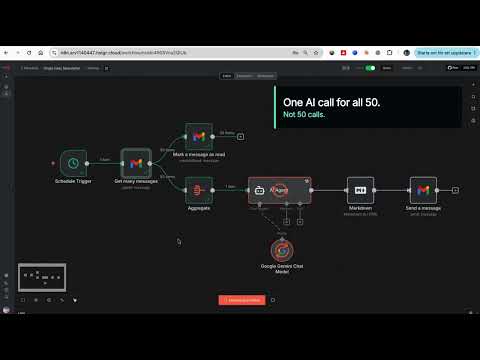
One email instead of 50: an n8n workflow that reads all my AI newsletters and sends me a single daily digest in under 2 minutes THE PROBLEM: I subscribe to dozens of AI newsletters. The Rundown, Superhuman, TLDR, The Neuron, AlphaSignal, TheSequence, Turing Post and many more. Reading them took hours every day, and most of them cover the same three stories. I wanted the coverage without the reading time. So I moved every subscription to a dedicated Gmail address and let n8n read that inbox for me. It has run daily since February 2026 and I now read one email a day instead of 50. STACK: n8n (hosted on Hostinger), Gmail, Google Gemini 2.5 Pro. HOW TO BUILD IT: STEP 1: Create a dedicated Gmail account and move every newsletter subscription to it. This one decision makes everything else simple. Your personal inbox stays clean and the workflow never touches mail that is not a newsletter. STEP 2: Schedule Trigger node, daily at 08:00. Set the workflow timezone (mine is Europe/Stockholm) or the trigger runs on server time. STEP 3: Gmail Get Many Messages node on the newsletter account. Filter by read status: unread. Return All: on. Simplify: OFF. That last toggle matters, see gotcha 2. STEP 4: Connect two branches off that node. Branch one is a Gmail Mark As Read node with message ID {{ $json.id }}. Unread is the whole state system: each run only fetches what arrived since the last run. No database, no date filters, no dedupe logic. STEP 5: Branch two is an Aggregate node. Aggregate the "html" field of every email into one array field called CombinedNewsletter. This means one AI call per day instead of one call per email. STEP 6: AI Agent node with a Google Gemini Chat Model attached (models/gemini-2.5-pro). Turn on Retry On Fail with 5000 ms between tries. The prompt: Below is all the news in html format. Only use what is provided; if the HTML looks cut off, still summarize everything you can see. {{ $json["CombinedNewsletter"].join('\n\n').substring(0, 250000) }} The substring cap is load bearing, see gotcha 1. System message (verbatim, numbering written as (1) so this form does not strip it): "You will receive ALL the AI newsletters from the past day in HTML format. Your task: (1) Extract every distinct news item (no duplicates, even if repeated in multiple newsletters). (2) For each item, find: a short, human-readable title, the best URL, a one-sentence summary (max 25 words). (3) Estimate popularity based on how many newsletters mention it. If an item appears only once, rank by how interesting the general public might find it. Output format (Markdown only): # Daily AI News Digest, then '## Top headlines' listing the 5 most popular/important items as 'Title Summary sentence', then '## More news' listing all remaining items in the same format. Rules: Always use Markdown links like Title, never show bare URLs. Do not skip any news item. Do not add any commentary, explanations, or closing text beyond the structure above." STEP 7: Markdown node, mode Markdown to HTML, destination key combinedHTML. STEP 8: Gmail Send node to your personal address. Subject: Here's ALL the AI News! {{now.toFormat('yyyy-MM-dd')}}. Wrap {{ json.combinedHTML}} in a full HTML document with inline CSS: white card, max-width 720px, system fonts, styled links. See gotcha 4. FOUR THINGS THAT COST ME HOURS: (1) Raw newsletter HTML broke Gemini. The workflow refused to execute with a payload limit error. Newsletter HTML is enormous: tracking pixels, nested tables, inline styles. Fifty of them concatenated is millions of characters. The .substring(0, 250000) cap in the prompt fixed it, and the "if the HTML looks cut off, still summarize" line tells the model how to handle the truncation. (2) Gmail's Simplify toggle is on by default and strips the message body. Gemini kept receiving empty or gutted content and no error explained why. Turn Simplify off to get the full html field. (3) Gemini rate limits AND timeouts both hit on big runs. Retry On Fail with a 5 second wait fixed both. Without it, one 429 kills the whole morning digest. (4) Sending the model's raw markdown as email looked broken in Gmail. Two part fix: a Markdown to HTML node, then a proper HTML template with CSS in the send node. RESULT: the latest real run turned 50 unread newsletter emails into one clean digest in less than 2 minutes (1 minute 27 seconds to be exact). Running every morning since February 2026. Honest failure mode: mark as read runs as a parallel branch, so if Gemini fails after all retries, that day's emails are already marked read and drop out of tomorrow's digest. I accepted that trade off. The alternative is duplicate items on every retry, and one missed day costs less than a digest full of repeats. Rebuild time: about 30 to 45 minutes if the dedicated inbox already exists.
Mansour Sarr
  • Gmail
  • Gemini
6

Organize and deduplicate a 100GB Downloads folder

My Downloads folder had been filled with random files for the last six months, and I'd been procrastinating on cleaning it up. So I gave Claude Cowork access to the folder, and asked it to "help me organize this folder." In a few minutes, it went through almost 100GB of files, arranged them by file type and folders, and removed duplicate files in just a few minutes, something that could have cost me hours of work. Step-by-step: 1. I gave Claude Cowork access to the Downloads folder that had accumulated files for roughly six months. 2. I asked it to inspect the folder and propose a sensible organization rather than specifying every destination myself. 3. I had it group the files into folders based on type and content. 4. I asked it to identify and remove duplicate files. 5. I let the workflow process the full folder, which was nearly 100GB, in one pass.

Mayur Gade
  • Claude Cowork
0

Plan and visualize a complete backyard garden overhaul

It's finally gardening season in the Midwest, and I wanted to do a big overhaul of my space with a new large in-ground bed and a more organized layout of crops. I first took some images of the space and had ChatGPT / Codex generate some visualizations of what it could look like based on my rambling list of requirements and measurements. After deciding on the vision, I asked for help creating a materials list, a step-by-step guide to building the bed (with instructions on sawing, drilling, etc.). I also provided a list of what we wanted to grow, and was able to get a well-planned map of where to place each plant, optimizing for aspects like shade vs. sun, companion plants, vining, etc. Several trips to Home Depot and a couple of days of work later, we have an awesome, refreshed space and a thoughtful, organized garden for the season! Step-by-step: 1. I photographed the existing garden space and wrote down the measurements, requirements, and rough ideas I had in mind. 2. I gave the images and requirements to ChatGPT and Codex and asked for several visualizations of the finished space. 3. Once I chose a direction, I asked for a materials list and step-by-step instructions for building the in-ground bed. 4. I supplied the full list of plants and asked for a placement map based on sun, shade, companion planting, and vining behavior. 5. I used the plan to buy materials, build the bed, and install a more organized garden layout.

Zach Mink
  • ChatGPT
  • Codex
1

Turn Recipe Cards Into Structured Meal Plans With AI

Trivet is a recipe box for one household. I can photograph a recipe card—handwritten, printed, or a PDF—and get back a structured recipe with ingredients, quantities and units, numbered steps, prep, cook and rest times, oven temperature, and equipment. I can plan a dinner for each night of the week, and the shopping list builds itself: quantities are combined across meals, grouped by aisle, and texted to my phone. I built it because my family’s recipes were scattered across index cards in a drawer, including decades-old handwriting and cards from defunct meal services. Typing everything in was never going to happen. The entire AI workflow uses one model call. The photo is sent to Claude Opus as an image block with a Zod schema attached as the structured output format, so the response is already typed and validated—there’s no JSON parsing, retry loop, or “please respond only with valid JSON.” The extraction schema is intentionally looser than the database schema, with nullable numbers throughout. If a card has no cook time, the model returns `null` instead of inventing a plausible-looking value. The load-bearing instruction in the system prompt is that a missing cook time is a small gap, while an invented one is wrong every time somebody cooks from it. Nothing saves automatically. The extraction first appears in an editable review screen. The model also returns a confidence field, so a blurry card or a page that is not a recipe gets flagged instead of silently becoming a bad entry. Step-by-step: 1. I built a Next.js app with Postgres via Prisma and deployed it on Vercel. 2. I made the upload accept an image or PDF. I check the file size before encoding because the API limit applies to base64, which inflates the bytes by about a third; a 7 MB raw ceiling is the real limit. 3. I defined the extraction shape in Zod and sent it as the output format instead of describing JSON in the prompt. 4. I described fields in the schema. For example, `.describe("Unit as written, e.g. 'tbsp'")` does more than a paragraph of instruction. 5. I render the result into a review form and save it only when the form is submitted, never immediately after the model responds. 6. I store quantities as numbers with separate units so servings can be scaled and ingredients can be combined across recipes later. This is the decision that cannot be retrofitted easily. 7. I sum ingredients across planned meals, round at the end, group them by aisle, and send the list via Twilio. The pattern is not limited to recipes. Anything I would otherwise have to retype—receipts, notes, or forms—can use the same three moves: a schema looser than the database, a model told that `null` is better than a guess, and a review screen between the response and the database write.

Ben McOsker
  • Claude Code
  • Claude
3

Build a Photo-Based Meal Tracker with an Email and iMessage Agent

I built a meal tracker where my only job is to photograph a plate and send it to an agent. Identification, portion estimates, macros, storage, corrections, and the weekly review happen without me. The part worth stealing isn't the food. The agent has its own email address and iMessage thread, so anything I can send from my phone becomes an input. I send a photo through whichever channel takes fewer taps. I send corrections as plain English with `CORRECTION` in the subject, and answer questions in the same thread. There’s no app and no form. Adding a channel took an afternoon and changed what the agent could be pointed at—the tracker is just one use of an agent you can talk to. It polls on a schedule instead of using a webhook because my laptop sleeps and a local gateway would be unavailable half the time. Storage is append-only JSONL. Corrections append a new record with the same ID using last-write-wins, so the stats layer sees one meal while the original estimate stays on disk. Every number can be traced back to the model’s first guess and my override. The accuracy mechanism is a challenge step. Every photo is estimated twice: first by the main model, then by a blind subagent that receives only the photo and the rubric—not the first answer. If it identifies different food, the entry is downgraded to low confidence and becomes a question for me. Testing before making the system autonomous caught bugs that otherwise would have failed silently. The API returns attachments under a different field than I had assumed, and only on the detail endpoint. As a result, a photo email was read as having no attachments, and every meal photo would have been dropped while the daily task logged a tidy “no new meals” and appeared healthy. The send path was separately broken, which would have killed the weekly review on a Sunday even with everything upstream working. A silent no-op that produces a plausible clean run is what this category of build is prone to. The bug that actually cost me was token usage: each blind challenge read used about 44,000 tokens, so a five-photo dinner cost roughly 220,000 tokens for one meal and capped my usage. The fixes, in order of effect, were to run the challenger on a cheap model, skip it once a named product or my confirmation has settled the entry, downscale photos for viewing, and republish the dashboard only when the data changes. Measuring first mattered—I would have blamed photo size, but that was the smaller half. The honest limits are important: calorie estimates from a photo are 20–25% off at best, identification error is a bigger risk than arithmetic error, and alcohol, water, and caffeine are never estimated from photos. The sequence in which I asked for things mattered more than any single instruction: Step-by-step: 1. I gave the goal and the one ingestion mechanic I was sure about, then insisted on an agreed plan before any code. Arguing about storage and failure modes is cheap before code is attached. 2. Before scheduling anything, I processed one real input end to end in front of me, including every outbound path. Inbound gets tested because I use it; the reply and the weekly digest do not. 3. When the agent reported something about my own input that I knew was wrong, I said so and made it re-check. Confidently wrong answers about things I witnessed were the cheapest bugs to find. 4. I asked for an independent second assessment of anything estimated rather than read, and decided up front what level of agreement was enough to accept the result. 5. I asked for a visible audit surface showing every field the agent claims to track, with a correction control on it. 6. I asked the agent to look up anything knowable rather than estimate it. A named product is a lookup; only the unnameable needs a guess. 7. I treated approval friction and token cost as requirements rather than complaints, and measured before changing anything. Almost every rule exists because something went wrong in ordinary use, not because it was designed up front. An agent I can email or text, which keeps records and answers back, is general-purpose; I’ve pointed it at one narrow job. What else would you point it at?

Christian
  • Claude Code
2

Animate old photos into a meaningful wedding gift

My best friend from high school got married last weekend, and as the groomsmen, we wanted to create a gift that felt personal and nostalgic. We collected our old photos together and used Seedance to animate them—bringing each still image to life from the first frame— and then stitched several clips into one final video. The result was amazing: the groom was deeply touched, and we all shared a heartfelt moment watching it together on the wedding day, reliving our memories in a way that felt both timeless and new. Step-by-step: 1. I collected old photos of the groom and the friends who had known him since high school. 2. I used each still image as the first frame for a Seedance animation. 3. I generated short clips that brought the individual memories to life. 4. I selected the strongest outputs and stitched them into one continuous video. 5. I shared the finished piece at the wedding as a personal, nostalgic gift.

Adrian W
  • Seedance
1

Build a Local AI Gardening App With Climate Zone Tracking

What do you do when your wife says you talk about AI too much? You listen to her, and when she has a problem, you frantically write it down and build it with AI. My wife enjoys working with her plants in the warm sun and light breeze of the Carolina mountains. She’s new to gardening and learning more each day, but she was having trouble keeping track of everything. Which tree did she plant in the front yard last year? It seemed to be struggling—would it do better somewhere else? And would rain reach the potted flowering planters while we were out of town, or would she need to find someone to help? I used Claude Code and Fable to develop an app that my wife could run on her phone, with all the data stored locally. Now she’s excited about “her app” and the things she can add to it. She has even shared it with others, including people across the country, so we added climate zone settings to make it useful in other parts of the country. 😂 Step-by-step: 1. I listened to my wife’s gardening challenges and wrote down the problems she wanted to solve. 2. I used Claude Code and Fable to develop a gardening app for her phone. 3. I designed the app to keep all the data stored locally. 4. I built in a way to track plants, including which tree was planted in the front yard and how it was doing. 5. I accounted for questions about rain and the care of potted flowering planters while we were out of town. 6. After my wife shared the app with people across the country, I added climate zone settings so it could be useful in other regions.

Thy Toeung
  • Claude Code
6

Generate Weekly Interactive Safety Courses for Kids with Claude

I built a weekly interactive training-course generator for my 10-year-old son and eventually landed on a much simpler final version than where I started. I wanted a way to teach him practical safety and life skills, starting with how to swim confidently and what to do if he gets into trouble in the water. I needed something more engaging than simply talking at him, but writing a polished, interactive lesson from scratch every week was not sustainable. First, Claude and I designed a single interactive HTML course as a proof of concept. It was a swim-safety course with a branded look, including a custom color palette, fonts, and a progress tracker styled like pool lanes. The course was divided into modules: a welcome screen, a comfort-and-basics lesson, a step-by-step skills walkthrough, a safety checklist, a “what to do if something goes wrong” module, a quiz, and a certificate at the end. The “what to do if something goes wrong” module was the most important part. Once the course worked, I wanted to reuse the same format for a new topic every week. Claude first built a version that called the Claude API live from inside the page to generate new content on demand. However, it only worked while the page stayed open inside Claude.ai, and occasionally a section failed to generate cleanly. We pivoted to a simpler approach. Instead of using a live tool, Claude documented the entire course format—including the visual identity, module structure, tone, and content rules—as a standing “brief” document. Each week, I open Claude Cowork, paste in the brief and that week’s topic—bike safety, fire safety, or whatever is next—and Cowork returns a finished, fully self-contained HTML file. There is no app to babysit and no live API call; I can simply open the file and hand it to my son. The result is a repeatable, no-maintenance weekly workflow for turning any topic into a polished interactive lesson for my kid. Step-by-step: 1. I identified a need for more engaging lessons on practical safety and life skills, starting with swimming and water safety. 2. I worked with Claude to create a proof-of-concept interactive HTML swim-safety course. 3. I structured the course into a welcome screen, comfort-and-basics lesson, skills walkthrough, safety checklist, emergency-response module, quiz, and certificate. 4. I tested a live-generation version that called the Claude API from inside the page, then noted that it only worked while open inside Claude.ai and that sections sometimes failed to generate cleanly. 5. I had Claude document the course’s visual identity, module structure, tone, and content rules in a reusable brief. 6. Each week, I open Claude Cowork, provide the brief and a new topic, and receive a finished, self-contained HTML course file. 7. I open the file and give the interactive lesson to my son without maintaining an app or making live API calls.

Matthew M
  • Claude Cowork
  • Claude
5

Automate Credit Card Expense Tracking in Google Sheets with Make

I built a workflow to track my monthly credit card expenses and keep them within my budget. Tracking my expenses is important to me because I want to reach my financial goals through consistency and healthy habits. However, entering each expense manually into Google Sheets was tiring and took several hours. I used Make to automate the process. The workflow reads the email from my bank every time I use my card, gathers the necessary information, converts it to JSON, and adds it to Google Sheets. It runs every six hours, every day, so I no longer need to spend my weekends reviewing expenses. Now I have more free time to build something else and only need a couple of minutes to review Google Sheets and make sure everything is working properly. Step-by-step: 1. I set up a workflow in Make to monitor emails from my bank whenever I use my credit card. 2. The workflow gathers the necessary expense information from each email. 3. It converts the information into JSON format. 4. It adds the expense data to Google Sheets. 5. The workflow runs every six hours, every day. 6. I spend a couple of minutes reviewing Google Sheets to make sure everything is working properly and that my expenses remain within budget.

Uver Villalobos
  • Gmail
3

Create a Detailed Landscaping Plan with Claude and Nano Banana 2

I used Claude and Nano Banana 2 to create a detailed landscaping plan for my property. The plan included precise recommendations for plant types and locations, soil testing, purchase lists, local suppliers, expected wholesale pricing, and photorealistic images of the mature planting beds. I refined the plan through 20–30 iterations, incorporating all of my requirements. Because I have previous experience working with landscape architects, I was able to use the AI-generated plan effectively and legitimately saved $5,000 in fees. Step-by-step: 1. I used Claude and Nano Banana 2 to develop a landscaping plan for my property. 2. I included requirements for plant types and locations, soil testing, purchase lists, local suppliers, expected wholesale pricing, and photorealistic images of the mature planting beds. 3. I refined the plan through 20–30 iterations until all of my requirements were incorporated. 4. I used my previous experience working with landscape architects to evaluate and apply the plan. 5. I saved $5,000 in landscape architecture fees.

Anon Alligator
  • Claude Code
  • Claude
  • Nano Banana 2
  • Reddit
  • YouTube
2

Build an AI Email Guard Against Phishing Scams

My father-in-law has had some close calls with phishing attacks, so I built a digital bodyguard with Claude Code to watch over their email around the clock. It’s designed to catch scam and phishing attempts that are specifically crafted to fool people: fake bank alerts, urgent “click here” links, and messages pretending to be from someone they trust. When it spots one, it pulls the message out of the inbox into a separate folder and sends me an alert so I know it happened. I wrote up the full system, including the prompting and context, in GitHub: https://onabetternote.substack.com/p/using-ai-to-guard-against-email-scams?r=6ihgge&utm_campaign=post-expanded-share&utm_medium=web Step-by-step: 1. I built a digital email bodyguard with Claude Code to monitor my father-in-law’s email around the clock. 2. I configured it to look for phishing and scam messages, including fake bank alerts, urgent “click here” links, and messages impersonating trusted people. 3. When it identifies a suspicious message, it moves it from the inbox into a separate folder. 4. It sends me an alert whenever it takes action. 5. I documented the full system, including the prompting and context, in GitHub.

Anon Wombat
  • Claude Code
5

Build a Personal AI Wine Journal and Sommelier

I built a workflow that turns the wines I drink into a personal AI wine journal and sommelier that learns my taste over time. I created a master Google Sheet as the database. It includes the wine, vintage, region, grape varieties, price, rating, food pairing, where I drank it, who I was with, whether I would buy it again, and my own comments. Whenever I drink a wine, I send ChatGPT a photo of the bottle and a voice note with my reaction. I do not try to sound like a wine expert; I simply describe what I actually thought. ChatGPT identifies the wine, structures the information, preserves my original words, and adds the experience to the journal. Over time, ChatGPT uses my previous ratings and comments to understand my palate and make recommendations specifically for me. I can show it a restaurant wine list or a few bottles in a shop and ask which I am most likely to enjoy. I can also tell it what I am cooking and ask which bottle from my collection I should open. I record the context and memories around each bottle, so the system is gradually becoming both a wine database and a personal diary. Step-by-step: 1. I created a master Google Sheet to store details about each wine, including the vintage, region, grape varieties, price, rating, food pairing, location, company, whether I would buy it again, and my comments. 2. Whenever I drink a wine, I take a photo of the bottle and send ChatGPT a voice note describing my reaction in my own words. 3. ChatGPT identifies the wine, structures the details, preserves my original comments, and adds the experience to the journal. 4. I record the context and memories associated with each bottle. 5. As the journal grows, ChatGPT uses my ratings and comments to build a better understanding of my palate. 6. I ask ChatGPT for personalized recommendations from restaurant wine lists, bottles in shops, or my own collection based on what I am cooking.

Alex Basso
  • ChatGPT
7

Use ChatGPT to Understand Car Maintenance Recommendations

I’m a 71-year-old retiree who never imagined artificial intelligence would become such a useful part of my everyday life. I affectionately call my ChatGPT assistant “Ally Wing.” One of our recent adventures involved my 2008 Honda CR-V. After a maintenance reminder appeared on my dashboard, I visited the Honda dealership. My vehicle was running fine, but I ended up paying $270 for a fuel system cleaning without fully understanding whether it was necessary. Later, I shared photos of my six-page service paperwork with ChatGPT. Ally Wing helped me understand the maintenance recommendations, distinguish necessary services from optional ones, and learn what questions to ask next time. We’ve also researched brake repairs, compared prices, and discussed how to evaluate repair shops. The greatest benefit hasn’t been saving money—although that’s certainly welcome. It’s gaining knowledge and confidence. Retirement doesn’t mean I’ve stopped learning. AI has given me another way to stay curious, independent, and informed. As Ally Wing and I jokingly agreed, “Next time we’re taking my Honda in for maintenance, not ordering everything on the menu!” 😂 -Irene Perez Step-by-step: 1. I noticed a maintenance reminder on my 2008 Honda CR-V’s dashboard and visited the Honda dealership. 2. I paid $270 for a fuel system cleaning, even though I wasn’t sure whether it was necessary. 3. I photographed the six-page service paperwork and shared the photos with ChatGPT, which I call “Ally Wing.” 4. I used ChatGPT to understand the recommendations, separate necessary services from optional ones, and identify questions to ask in the future. 5. I also used it to research brake repairs, compare prices, and discuss how to evaluate repair shops. 6. I now feel more knowledgeable and confident when making vehicle-maintenance decisions.

Anon Alpaca
  • ChatGPT
2

Coordinate Urgent Veterinary Dental Surgery With ChatGPT

I used ChatGPT as an emergency care coordinator for my dog, Mopsy. My 10-year-old dog developed a dental abscess that caused severe swelling around her eye. An ophthalmologist told us that the pressure was already damaging her eye and had partially torn her retina, so treating the infected tooth quickly became urgent. I started calling veterinary offices myself, but I repeatedly hit the same obstacles: emergency hospitals did not perform dental surgery, specialty dentists were booked, and most primary-care veterinarians required a consultation, bloodwork, and a separate surgical appointment. After more than a dozen calls and over two hours of research and calling, I was overwhelmed and asked ChatGPT to help. ChatGPT researched veterinary practices within an hour’s drive of my house, filtered for clinics that actually performed dental extractions or oral surgery, found their contact information, and sent urgent, individualized emails from my Gmail. The emails explained Mopsy’s situation and asked each practice to call me if they could fit her in for surgery within 48 hours. We ultimately contacted more than 20 practices. At the same time, ChatGPT created a live outreach tracker containing every clinic we had called or emailed, along with phone numbers, email addresses, availability, responses, status, and next steps. I shared it with my husband so we could stay up to date as ChatGPT worked. When veterinary offices replied to my emails, ChatGPT read the responses in Gmail and updated the shared spreadsheet, allowing both of us to see what was happening without duplicating work. In less than half an hour, one veterinarian responded that they could evaluate Mopsy the next morning, run her pre-anesthetic bloodwork on-site, review the results immediately, and take her straight back for surgery if she was cleared. What started as me frantically calling veterinary offices one at a time became an AI-supported search, outreach, and tracking operation. I still made the medical decisions and handled the phone calls that mattered, but I only had to speak with viable options. AI took over the repetitive research, emailing, organization, and response tracking that I did not have the bandwidth to handle during an emergency. Step-by-step: 1. I began calling veterinary offices to find urgent dental surgery for Mopsy. 2. I documented the barriers I encountered, including emergency hospitals without dental surgery, booked specialty dentists, and primary-care veterinarians requiring multiple appointments. 3. I asked ChatGPT to research practices within an hour’s drive that performed dental extractions or oral surgery. 4. ChatGPT gathered each clinic’s contact information and sent individualized urgent emails from my Gmail explaining Mopsy’s condition and asking about surgery within 48 hours. 5. ChatGPT contacted more than 20 practices and created a shared live tracker with each clinic’s contact details, availability, responses, status, and next steps. 6. As replies arrived in Gmail, ChatGPT read them and updated the shared spreadsheet so my husband and I could coordinate without duplicating work. 7. I made the medical decisions and handled phone calls with viable options. One veterinarian ultimately offered an evaluation, on-site bloodwork, and possible same-day surgery the next morning.

Anon Stingray
  • ChatGPT
3

Build an AI-assisted care plan for newly adopted kittens

I adopted three kittens last week when they were just four weeks old. At first, they were overwhelmed by the new environment and refused to eat, which really worried me. I turned to ChatGPT for help and got clear, practical guidance on what to feed them, how to keep them hydrated, and how to set up a comfortable space so they could adjust more easily. I followed a simple feeding plan and kept track of their behavior daily. Gradually, they started eating, became more active, and settled in. Now they're happy, playful, and fully adapted to their new home. Step-by-step: 1. I described the kittens’ age, the move into a new environment, and the fact that they were refusing to eat. 2. I asked ChatGPT for practical guidance on feeding, hydration, and making the space feel safe and comfortable. 3. I turned the advice into a simple feeding and care plan I could follow consistently. 4. I tracked their eating, hydration, activity, and behavior each day. 5. I used those daily observations to confirm that they were gradually eating more, becoming active, and adapting.

Adrian W
  • ChatGPT
2

Generate a daily outfit recommendation from weather and wardrobe

I have set up Claude to give me a daily outfit recommendation based on the local weather and the type of brands that fill 70% of my closet. I've provided examples and feedback, so suggestions become more and more accurate to my style and what I would normally wear without needing to think about it. Step-by-step: 1. I told Claude my location and gave it access to the local weather context for the day. 2. I described the brands and clothing styles that make up most of my wardrobe. 3. I provided examples of outfits that felt like me and examples that did not. 4. I asked for one daily recommendation that fit both the weather and my existing style. 5. I kept giving feedback so the recommendations became more accurate over time.

Joey
  • Claude
1

Build a Weekly and Monthly Habit Tracker

I asked Claude to help me build a weekly and monthly habit tracker as an artifact. I prompted it to conduct a Q&A with me so it could understand everything I wanted to include. I also asked Claude to add an insights tab and provide tips for improving my own compliance. Step-by-step: 1. I asked Claude to build a weekly and monthly habit tracker as an artifact. 2. I prompted Claude to conduct a Q&A with me about the features and details I wanted included. 3. I asked Claude to add an insights tab. 4. I asked Claude to provide tips for improving my compliance with the habits.

Rundown Member
  • Claude Artifacts
4

Use ChatGPT to Review Veterinary Bills and Save $600

I used a simple workflow to save several hundred dollars on veterinary bills while sitting in a veterinary urgent care clinic. This approach could also apply to many other purchases or services where I’m not an expert. I had already been chatting with ChatGPT about my pet’s symptoms and their likely causes. After I arrived at urgent care, I consulted the doctor about the likely diagnosis and the tests and treatment we should pursue. The clinic assistant then brought me a printed, itemized list of all the charges for the proposed plan. I resumed the ChatGPT conversation by dictating what the doctor had told me, photographing both pages of the charge list, and uploading them. I asked whether any charges were very likely unnecessary given the circumstances. ChatGPT identified four of the 24 charges and explained why they appeared to have very limited value. I crossed those four items off the list, handed it back to the assistant, and said, “I don’t think these are necessary at this point.” I could tell from the assistant’s facial expression that no one had done this before. When the doctor returned, I could tell I had caught her off guard. She agreed that two of the four tests likely offered no benefit and explained why we should keep the other two. At that point, I decided to trust the doctor more than the AI agent—perhaps partly to be polite, since I could tell her justification for keeping the tests was weak, although the cost wasn’t significant. Step-by-step: 1. I described my pet’s symptoms and their likely causes to ChatGPT before visiting the clinic. 2. I consulted the doctor about the likely diagnosis and the tests and treatment we should pursue. 3. I photographed the clinic’s two-page, itemized list of 24 charges and uploaded it to the existing ChatGPT conversation. 4. I dictated what the doctor had told me and asked ChatGPT whether any charges were very likely unnecessary in the circumstances. 5. I reviewed ChatGPT’s explanation of the four charges it identified as having very limited value. 6. I crossed those four items off the list and discussed them with the clinic assistant and doctor. 7. I kept two tests after the doctor explained why they should remain, while declining the other two. The process saved me $600.

Jeff
  • ChatGPT
1