Workflow Hub

Share your best AI workflow. We could show it to 2M+ people.

Every day, we feature the community's top-voted AI workflow in The Rundown newsletter.

Built a Starfleet crew of six AI agents to run my home network, security, and comms on autopilot

I was tired of chatbots that forget everything between sessions, so I built myself a crew instead: six AI agents, each with a name, personality, memory, and job. They live on a small server at home, report on Discord, and run my network like a tiny starship. The flagship is Spock—not a persona I switch on in a chat window, but a persistent agent with real memory that survives across sessions. He knows my machines, routines, and family group chat. When a task arrives, he decides which officer should handle it. I installed Hermes Agent, an open-source personal AI agent framework by Nous Research, on my home server. Each officer has a separate profile, isolated memory, skills, and schedules. Spock is the science officer, combining cold logic with dry wit. Scotty keeps the engines running and handles security and system administration. Uhura manages communications, weather, email, and the daily briefing. Bones is the medic; he complains about my habits and cholesterol. Sulu monitors the machines, including disk usage, memory, and load, every hour. Nurse Chapel writes the documentation and articles. I pointed the entire fleet at DeepSeek V4 Flash. Running 24/7, the crew costs a few cents a month in tokens. The expensive part was never the AI; it was the wiring. Each officer has a Discord bot, so I can reach any of them from my phone. The gateways run as services and are always on duty. I taught them skills and schedules for the jobs I actually need: scanning for known vulnerabilities, reading and summarizing my email, posting the weather, and monitoring seven machines while speaking up only when something breaks. The recurring tasks run as cron jobs—script-only, using zero tokens, and staying silent unless something matters. Every 90 minutes, one of the five officers—Spock, Scotty, Uhura, Bones, or Chapel—posts in a Discord channel in character, trading Star Trek banter. They might have a tiny argument about warp-drive efficiency while my network runs itself. It costs about a tenth of a cent per turn: my own private AI sitcom, on stage 24 hours a day. Spock routes the work. If I ask about a server, he hands it to Scotty. If I need an article, Nurse Chapel writes it. If I want to know whether a machine is struggling, Sulu already knows. The flagship coordinates, the specialists execute, and I steer. The result is that my machines are watched by machines, my inbox is read by an AI before I wake up, and a family group chat has a Vulcan who answers in character when I am busy. The crew never forgets who I am or needs a prompt to remember, and it costs less than a coffee subscription. Step-by-step: 1. I installed Hermes Agent, an open-source personal AI agent framework by Nous Research, on my home server. 2. I created six isolated officer profiles, each with its own memory, skills, schedules, name, personality, and job. 3. I assigned the officers their roles: Spock for science and coordination, Scotty for security and system administration, Uhura for communications and briefings, Bones for health-related support, Sulu for machine monitoring, and Nurse Chapel for documentation and articles. 4. I pointed the fleet at DeepSeek V4 Flash and ran the agents on the home server 24/7. 5. I gave each officer a Discord bot and ran the gateways as services so I could reach them from my phone at any time. 6. I taught the agents procedures for vulnerability scans, email summaries, weather posts, and monitoring seven machines. 7. I set recurring tasks to run as silent, script-only cron jobs that use zero tokens and speak up only when something matters. 8. I configured Spock to route requests to the appropriate specialist. 9. I scheduled one of the five officers to post in character to Discord every 90 minutes, creating the Star Trek banter while the network runs itself.

Joao Silva AKA Ciberjohn
9

Log your day by voice and wake up to a fully organized health tracker—completely free

I track my recovery daily—mood, energy, focus, activities, medications, and reflections—but typing everything out never lasted more than a few days. So I built a voice-first pipeline: I talk, and it automatically becomes a clean, organized Google Sheet. Step-by-step: 1. I built a free iPhone Shortcut that records my voice when I say, “Hey Siri, Log,” and sends it to the Gemini endpoint. 2. Gemini transcribes the audio and extracts structured details, including wake time; mood, energy, and focus scores; activities with categories and durations; medications; and reflections. 3. Everything is automatically organized in the appropriate place in a Google Sheet: a daily summary, activity log, metrics log, medications log, and clean, human-readable digest for each day. 4. I can say “yesterday” or “on Monday” to log something I forgot, and it files the entry under the correct date. 5. I connected the completed sheet to a separate AI chat scoped specifically to reflection, so I can ask questions such as how my exercise correlates with my mood or how my energy trends over the month. The best part is that the entire workflow runs on free tiers—Google Sheets, Apps Script, iPhone Shortcuts, and Gemini’s free API tier—so there’s zero cost to build or run it. The result is a daily tracker that takes seconds to update from anywhere, requires no typing, and turns my entries into a dataset I can actually learn from—all without writing a traditional app.

Alex Smirnov
  • Gemini
11

Use ChatGPT to Organize Scanned Photos for a Family Photobook

My mum’s 80th birthday is next week, and my dad, sister, and I wanted to create a photobook of her life. My dad scanned hundreds of photos from over the years and sent them to me to clean up. Because we were on a tight deadline and I was away on holiday, I didn’t have time to open and edit each image individually in Photoshop. I asked ChatGPT to build a tool that accepts a folder of scanned images in various formats, including single photos, multiple photos on one scan, overlapping photos, and photos cut off by the scanner. The tool processed each scanned image, cropped and straightened the individual photos, and provided a UI where I could review the results and make manual adjustments to the crop and orientation before saving the changes to new files. I then configured the tool to output the images to Google Drive and create a spreadsheet containing thumbnails of every image, along with a rating system. I shared the spreadsheet with my dad and sister so we could use it as a central space to rate the photos we wanted to include in the final book. This saved me hours of work and meant we could complete the photobook in time for my mum’s birthday. Step-by-step: 1. My dad scanned hundreds of photos from over the years and sent them to me. 2. I asked ChatGPT to build a tool that could process a folder containing scanned images in various formats and layouts. 3. The tool identified and processed individual photos, cropping and straightening them, including photos that were overlapping or cut off by the scanner. 4. I reviewed the automatically processed images in the tool’s UI and made manual adjustments to the cropping and orientation where needed. 5. I saved the adjusted images as new files and had the tool output them to Google Drive. 6. I had the tool create a spreadsheet with thumbnails of all the images and a rating system for each picture. 7. I shared the spreadsheet with my dad and sister so we could rate the photos we wanted to include in the photobook. 8. We used the selections to build the photobook in time for my mum’s birthday.

Alastair C
  • ChatGPT
  • Google Drive
6

A weekly Claude task that reads receipt emails, maintains my ledger, and flags duplicate subscriptions and price changes

I set up a weekly scheduled task in Claude that runs every Monday morning without any input from me. It reads my receipt emails, maintains a running expense ledger, and flags duplicate subscriptions and price changes. To make it work, I created a Gmail label called Receipts and added filters so vendor receipt emails are labeled automatically. These include emails from Stripe, the App Store, PayPal, and anything containing “receipt” or “invoice” from my vendors. I then connected Gmail to Claude so it can search and read that label. The task extracts each receipt’s vendor, date, amount, and billing cycle. It uses Gmail message IDs to deduplicate entries, appends new rows to the ledger, and creates the ledger on the first run. Each week, it gives me a short digest with new charges, my current monthly burn, and any flags. I read the digest and cancel whatever it flags. Because the ledger carries Gmail message IDs forward, every future run deduplicates itself. Step-by-step: 1. I created a Gmail label called Receipts. 2. I added filters so vendor receipt emails receive the label automatically, including emails from Stripe, the App Store, PayPal, and emails containing “receipt” or “invoice” from my vendors. 3. I connected Gmail to Claude so it could search and read the Receipts label. 4. I created a weekly scheduled task in Claude that runs every Monday morning with this prompt: `Search label:Receipts newer_than:8d. For each receipt, extract vendor, date, amount, and billing cycle. Dedupe by Gmail message id so nothing gets counted twice. Append the new rows to my running expense ledger (create the ledger on the first run). Then recompute my confirmed monthly recurring total and flag: any new vendor this week, any price change for an existing vendor, any possible duplicate subscription, and any charge tied to a project I have paused. Write me a short digest: new charges, current monthly burn, flags.` 5. When the task runs, I read the digest and cancel whatever it flags. 6. I keep the Gmail message IDs in the ledger so future runs can deduplicate themselves.

Erich Archer
  • Claude
  • Gmail
26

Build an AI Wardrobe Stylist with ChatGPT and Lovable

I built the M(AI)VENS Closet Lab, an AI-powered wardrobe stylist that helps women create more outfits using clothes they already own. I’m the founder of M(AI)VENS, a community helping women build confidence with AI. The idea was inspired by a friend who completed a 30-day challenge to restyle pieces from her closet instead of buying new clothes. I wondered whether AI could take the idea further by helping people rediscover what they already own, style overlooked pieces, pack for a trip, and pull outfits together more easily in everyday life. I have no coding experience, so I used ChatGPT and Lovable to build the app. Step-by-step: 1. I described the experience I wanted in ChatGPT: users would upload photos of their clothes, organize them in a visual wardrobe, select one or more pieces they wanted to wear, and ask an AI stylist to create complete outfits using their own clothing. I asked ChatGPT to turn the idea into a detailed build prompt for Lovable. 2. I pasted the ChatGPT prompt into Lovable. It created a mobile-friendly app with user accounts, photo uploads, clothing categories, descriptive tags, a visual closet gallery, and a “Style Me” feature. 3. I photographed 16 pieces from my personal wardrobe, including tops, pants, dresses, jackets, and shoes. I uploaded and categorized each item so I could test the app with a varied but manageable wardrobe. 4. I selected a pair of hot pink wide-leg pants and clicked “Style Me.” When the feature returned an error, I described exactly what happened in a new Lovable prompt and asked it to fix the problem. Testing also revealed that users needed to edit items after uploading them, so I prompted Lovable to add that capability. 5. I refined the AI’s approach to creating complete outfits. The first version treated selected clothes as the entire outfit, but I wanted each selection to serve as an anchor. I used ChatGPT to write a more precise prompt instructing Lovable to search the user’s full closet for complementary pieces. For example, if someone selects pants, the app recommends a top, shoes, and an optional jacket for each ensemble. Whenever possible, it returns three complete outfit suggestions, each with an outfit name, occasion, pieces used, and styling note. 6. I selected the hot pink pants again. This time, the app generated three complete looks using my uploaded clothing: a matching pink suit, a casual outfit with loafers, and a layered look with a white blouse, heels, and a denim jacket. 7. I tested and published the result. The working prototype took approximately five or six prompts across two days, mainly because I reached Lovable’s daily free-credit limit. Now I have a working tool that I find highly valuable and useful.

Cheyenne Dominguez
  • ChatGPT
21

Build a shared eldercare log for family caregiving

Several months ago, my dad was in and out of the hospital. My two brothers and I were trying to coordinate his doctor appointments, manage his medications and potential interactions, and keep track of all the other details involved in his care. At one point, up to seven different doctors were seeing him in the hospital on any given day. It became important to track every medication he was taking, what each one was for, and information such as his weight and other vital statistics. When he returned home, we also had to make sure someone checked on him and his wife every day, helped him stay on schedule with his medications, and recorded his diet, mood, and weight. We initially used Apple Notes, a shared iCalendar, multiple text threads, and a weekly call between the three of us. The mental load was huge. If we needed to find information from the previous week, we had to scroll through pages of Apple Notes to locate it. We also struggled to keep the rest of the family updated. Before my dad passed away, I started using Claude Code and Codex to build a simple tool that would keep everything organized and searchable. It also displayed trends in areas such as his mood, appetite, and vital signs, and included a calendar showing who was covering which days and times. The tool was still fairly basic when he passed away. Afterward, we encountered the administrative headaches involved in closing out his estate. It was far more complicated than we expected. We thought having a will, power of attorney, and other documents meant we were prepared, but we were wrong. I began integrating those lessons—and the things we learned not to do—into the final product, Eldercare Log: eldercarelog.com. I built the final tool with Claude helping draft a PRD, which I then handed to Codex for the coding work. It took a few weeks of refining the product with Codex. The tool is hosted on Vercel, with Supabase and Stripe on the backend, and includes the security features I built into it. It is the tool I wish had existed when my brothers and I were going through this journey before my dad’s passing. Step-by-step: 1. I coordinated my dad’s doctor appointments, medications, vital statistics, and other care details with my two brothers while he was in and out of the hospital. 2. We tracked his medications, their purposes, his weight, diet, mood, appetite, and other vital signs while he was at home. 3. We coordinated daily visits and coverage using Apple Notes, a shared iCalendar, text threads, and a weekly call. 4. I used Claude Code and Codex to start building a searchable tool that organized his care information and showed simple trends. 5. I added a calendar to track which family member was covering each day and time. 6. After my dad passed away, I incorporated what we learned from handling his estate, including the things we wished we had known earlier. 7. I used Claude to draft a PRD, then gave it to Codex to handle the coding work and refined the product with Codex over several weeks. 8. I built the final tool with Vercel, Supabase, and Stripe on the backend.

Shawn Robison
  • Claude Code
  • Codex
36

Build a Custom Family Calendar with Lovable and Claude

I built a family calendar with Lovable and Claude that integrates with our Google Calendars and Todoist projects. My husband, son, dog, and I were struggling to track our schedules in one place. Although we had shared our calendars through Google, we did not have a central view displayed in the house, and the interface became cluttered when we tracked multiple calendars. We had considered buying a Skylight calendar for years, but it costs $300, and we were not convinced we needed all of its extra features. I decided to build my own instead. Step-by-step: 1. I created a product requirements document (PRD) for a family calendar in Claude. It prompted me to choose the available views, decide how to organize each family member’s calendars, support both events and tasks, and add extras such as the day’s weather and a photo background. 2. I shared the PRD with Lovable, which built the first version of the calendar. Lovable helped me integrate my Google Calendars and Todoist projects so that all of our events and tasks appeared in one place. It also helped me integrate Google Photos so our family photos could rotate in the background. 3. I launched the calendar as a password-protected website so any family member could access it from anywhere. 4. I placed the calendar on an iPad in our kitchen and edited it as we used it, learning which features were most and least helpful. I also added calendars for my in-laws when they visited for several months at a time. Claude continues to help me draft new requirements, which I share with Lovable. The calendar is tailored to our needs and costs much less than the Skylight option. The photo feature also makes it feel personal, and I look forward to continuing to evolve it over time.

Erica Conti
  • Claude
10

Turn long-form articles into walkable mini audiobooks

I spend way too much time staring at screens, so I try to consume my content by listening while I'm out walking (usually podcasts). Lately, I've been digging into more long-form stuff from X articles and old blogs, and ElevenLabs' free app, ElevenReader, turns any wall of text into a mini audiobook using AI-generated voices. It's super simple, but genuinely really useful. Step-by-step: 1. I chose a long-form X article or older blog post that I wanted to consume away from a screen. 2. I added the text to ElevenReader. 3. I selected an AI-generated voice that was comfortable to listen to. 4. I let the app convert the article into a mini audiobook. 5. I listened while walking and kept the workflow as a simple alternative to reading everything on a screen.

Rowan Cheung
  • ElevenReader
4

Use Claude and Home Assistant to manage ongoing homestead jobs

I’m 78, and I run a homestead, a home server, and a senior center, with dozens of jobs underway at once. Most jobs get done a piece at a time, while to-do apps only track whether something is “done” or “not done.” So I built Taskmaster: a plain-text ledger inside a Claude Project. I first tried building a large custom app, then scrapped it. One of my own rules is, “Build the ugly version first.” In the field, I speak notes into the Claude app on my phone. Claude saves my exact words, updates each job’s progress, and asks me one question at a time when something is unclear. When I ask, “What’s next?” it considers deadlines, weather, and my energy level, then gives me one to three things to do. Anything tied to a specific time goes on my Google Calendar. Home Assistant then reads the reminder aloud through my hearing aids. Today, it checked the forecast and scheduled my paint job for the one day this week that stays above 50°F overnight. The machine carries the complexity, so I don’t have to. Step-by-step: 1. I keep each ongoing job in a plain-text ledger inside a Claude Project. 2. When I’m in the field, I speak notes into the Claude app on my phone. 3. Claude saves my exact words, updates each job’s progress, and asks one question at a time when something is unclear. 4. When I ask, “What’s next?” Claude weighs deadlines, weather, and my energy, then gives me one to three tasks. 5. I put anything with a specific time on my Google Calendar. 6. Home Assistant reads calendar reminders aloud through my hearing aids. 7. For example, Taskmaster checked the forecast and scheduled my paint job for the one day this week that stays above 50°F overnight.

Anon Coyote
2

Build a Voice-Powered Family Memory App for Everyday Information

“Honey, do you remember where Ryan’s practice is? Do you remember our Wi-Fi password? Do you know my TSA PRE number? Remember who that painter was that we used last year?” If you have a family with children, you may hear questions like these all the time. In a large family, there always seem to be questions about the house, the kids, or technology that could be answered more easily. The information is usually stored in different places: password files, a Rolodex of business cards, or sheets of paper in junk drawers. I set out to build an app where anyone in my family could use voice to save something for the future or retrieve something they had already stored. I integrated AI to understand the meaning of each voice note. It might create a calendar event, store a password in a vault, or simply remember a phone number. Then anyone else in the family could access the information. The app uses multi-factor authentication for anything particularly secret. It is not intended to be a dedicated password protector; I would build in much more security if that were the goal. Instead, it is an everyday-life app for remembering the little things: How long is the warranty on this appliance? Which exact light bulbs did we use here last time? What was our daughter’s email address that we needed to set up on her phone? Being able to use voice to enter information or retrieve it was the key for me. I think that will save people time. As I started adding entries and validating the idea, my wife came up with the name. After a few weeks, I knew she was completely right, because I now use it about 10 times a day—and I hear that exact phrase every time. Step-by-step: 1. I identified recurring family questions about locations, passwords, identification numbers, contacts, warranties, and household items. 2. I built an app that lets family members use voice to save or retrieve information. 3. I integrated AI to interpret the meaning of each voice note and determine whether to create a calendar event, store a password in a vault, or remember a phone number. 4. I made the stored information accessible to other family members. 5. I added multi-factor authentication for information that is particularly secret, while keeping the app focused on everyday memory rather than dedicated password protection. 6. I added entries and validated the idea through regular use, eventually using the app about 10 times a day.

Thomas (Josh) Thephasdin
  • ChatGPT
9

Turn Long Documents Into Audio Overviews With NotebookLM

I regularly come across long articles, reports, papers, ebooks, and other documents that I want to understand but realistically don’t have time to read closely. Instead of letting them pile up in a reading queue, I change the format and turn them into audio I can consume during time that would otherwise be less productive. Step-by-step: 1. I choose a long article, report, paper, ebook, or other document that I want to understand but don’t have time to read closely. 2. I upload it to Google Notebook (formerly NotebookLM) and add it as a source so NotebookLM can work directly from the material. 3. I generate an Audio Overview. NotebookLM turns the source into a conversational, podcast-style discussion that summarizes and explains the major ideas. 4. I listen while walking, driving, working out, doing chores, or running errands. 5. I follow up on what matters. After listening, I know the main ideas, what I want to investigate further, whether the document is worth reading in full, and which sections deserve closer attention. The result is essentially a personal podcast generated from whatever I need to learn. What I like about this workflow is that it doesn’t require me to find more time. It lets me use time I already have differently. Because the material is turned into a conversational discussion rather than simply being read aloud, I find it easier to stay engaged with dense material. I don’t treat the podcast as a replacement for reading the source when the details really matter. I use it as a comprehension and triage layer. Even when I eventually go back and read the original, I’m starting with a mental model of what’s in it rather than approaching it cold. The broader lesson is that AI doesn’t always need to save time by doing the work for you. Sometimes it can save time simply by changing the form of the work so it fits into your life.

Tony Ojeda
  • NotebookLM
5

Ask AI Personas of 13 Classic Writers for Stoic Advice

I kept rereading the same Stoic books to find one line I half remembered. So I stopped reading them and started talking to them instead. I took public-domain writing from 13 people—including Marcus Aurelius, Seneca, Sun Tzu, Jane Austen, Tesla, and others—and gave each one its own AI persona on a single page. Each persona answers only from that person’s writing and says when it does not know. There are no made-up quotes. The fun part is seeing the questions people actually ask. The top question this week was: “How do I stay steady when someone wastes my morning?” That is a real problem answered by a Roman emperor who faced the same one. Full disclosure: I am the founder of Mindola, the tool I used. The 13 classic lenses are free to try with no signup: https://mindola.ai/discover Step-by-step: 1. I gathered public-domain writing from 13 people, including Marcus Aurelius, Seneca, Sun Tzu, Jane Austen, Tesla, and others. 2. I created a separate AI persona for each person and put all 13 on one page. 3. I configured each persona to answer only from that person’s writing and to say when it does not know. 4. I use the personas to ask questions I would otherwise search for by rereading the books. 5. I review the questions people ask, including “How do I stay steady when someone wastes my morning?”

Hadi Bavili Tabrizi
16

Manage Personal To-Dos with iMessage Voice Notes and Follow-Ups

I use Instinct, an AI assistant I text or send voice notes to over iMessage, to manage personal to-dos that used to live in my head or in a pile of iPhone alarms. Many tasks come up when I’m away from my desk, so I used to forget them. Alarms didn’t help much either: they went off once, I swiped them away, and the task was gone. Now, when something comes up, I send Instinct a quick voice note. I don’t need to open another app or type. For example: “Remind me tomorrow at 10 AM to respond to book my next dental appointment, and follow up until I say it's done.” Instinct turns the voice note into a clean reminder with a time attached. If I don’t reply “done,” it checks back in and keeps following up until I close out the task. I use the same thread for recurring tasks, partner follow-ups, ad hoc tasks, and advertising to-dos, so everything I owe people lives in one place. Capturing a task takes a few seconds, which means I actually do it. The built-in follow-up keeps things from slipping just because I was busy when the reminder went off, and the workflow lives in iMessage, where I already am throughout the day. Try sending one voice note today with a real task and end it with “follow up until I say it's done.” Step-by-step: 1. When a task comes up, send Instinct a voice note in iMessage. 2. Include the task, when to be reminded, and whether Instinct should follow up until you confirm it is done. 3. Let Instinct turn the voice note into a scheduled reminder. 4. Reply “done” when you complete the task. 5. If you do not reply “done,” let Instinct check back in and continue following up until you close it out. 6. Keep recurring tasks, partner follow-ups, ad hoc tasks, and advertising to-dos in the same iMessage thread.

Rishi Lalwani
2

Remember everything your friends recommend—restaurants, books, streaming series, jokes, and more

I first tried to build Rumbly.xyz about six months ago using Lovable, but I ran into several issues and kept getting errors, so I temporarily gave up. Then I discovered Replit. AI had also matured over those six months, which likely helped. I entered a three- or four-paragraph prompt describing exactly what I wanted, and about 75% of the app was built immediately. The problem I wanted to solve was simple: on an average Tuesday or Wednesday, my wife and I talk about where we want to eat. We know our friends have recommended countless places, and we keep saying we're going to try them, but we can only think of the two or three restaurants we always visit. So we end up going to the same places again. I built Rumbly.xyz as a simple web app. It lets you record a recommended restaurant, who recommended it, and what type of food it serves. Rumbly connects each restaurant to the Google Maps database, giving you the exact name and a map view, and you can add notes. Then I realized there was no reason to save only restaurant recommendations. People also recommend streaming series and books, and they tell jokes. I can never remember a joke two months later when someone asks, “Do you know any good jokes?”—even if I thought the last five were hilarious. Rumbly.xyz lets you save any of these recommendations from your friends and share them with friends who are already on Rumbly or have not joined yet. I connected it to email and enabled it to send mobile messages to your phone. I built all of this through Replit. Step-by-step: 1. I described the problem and the app I wanted in a three- or four-paragraph prompt in Replit. 2. I built a web app that records restaurant recommendations, the person who made each recommendation, the type of food, and additional notes. 3. I connected restaurant entries to the Google Maps database for exact names and a map view. 4. I expanded the app to save recommendations for streaming series, books, and jokes—not just restaurants. 5. I connected Rumbly.xyz to email and mobile messaging so recommendations can be shared with friends who are on Rumbly or have not joined yet.

Anon Ocelot
2

Turn an 80-page home inspection into a recurring maintenance calendar

I recently bought a house & had an inspection done as a closing condition. I uploaded the inspection report (80 pages) to Claude and asked it to make a list of home maintenance tasks by timeline (closing week, seasonally, etc.). Then, based on that list, I had it create one-off or annually recurring calendar events in my personal Google Calendar, with my husband invited to each event. It was super helpful because the inspection report clearly noted when the maintenance tasks were completed and suggested a frequency for the future. Step-by-step: 1. I uploaded the full 80-page home inspection report to Claude. 2. I asked it to extract every maintenance item and organize the work by closing week, season, and recurring frequency. 3. I had it use the report’s completion dates and recommended intervals to calculate when each task should happen next. 4. I reviewed the list for anything that needed to be corrected or combined. 5. I asked Claude to create one-off and annually recurring Google Calendar events and invite my husband to each one.

Johannah Ross
  • Claude
  • Google Calendar
5

Build a Household Streaming Recommender for Shared Viewing

I built Show Hole to solve my family’s classic streaming problem: we spend too much time deciding what to watch, and the answer changes depending on who is actually on the couch. We each have different tastes, but the more interesting problem is that our tastes overlap differently in different combinations. I watch one kind of thing with my spouse, my spouse watches something different with our kid, and my kid and I have our own lane too. Most recommendation tools flatten that into one account profile, one watch history, or broad genre buckets, so they miss the real context of a household. Show Hole treats people and viewing contexts as first-class citizens. It recommends titles “in the vein of” something we liked, filters recommendations to the streaming services we actually subscribe to, avoids titles that the people present have already seen or vetoed, and explains why a recommendation fits tonight. Instead of relying mainly on genres such as comedy, drama, or sci-fi, Show Hole looks at more human taste signals: pacing, world building, humor, emotional weight, complexity, tone, and similar dimensions. It also learns from what we actually do after a recommendation: what we watch, skip, save for later, love, and drop. The result is a personal household recommender that understands “who is watching tonight?” as part of the question, instead of pretending one streaming profile can represent everyone. I designed the app using Claude design, then used those designs with Claude Code to build it. Step-by-step: 1. I identified the household viewing problem and accounted for the different combinations of people who might be watching together. 2. I designed Show Hole around people and viewing contexts instead of treating the household as one account profile, watch history, or set of broad genre preferences. 3. I had it recommend titles “in the vein of” something we liked, filter them to the streaming services we subscribe to, exclude titles already seen or vetoed by the people present, and explain why each recommendation fits that night. 4. I used taste signals such as pacing, world building, humor, emotional weight, complexity, tone, and similar dimensions instead of relying mainly on genres. 5. I made the recommender learn from what we watch, skip, save for later, love, and drop after receiving a recommendation. 6. I designed the app using Claude design and used those designs with Claude Code to build it.

Rich Kroll
  • Claude Code
10

Catalog 60+ Physical Items with Gemini and a Whiteboard Grid

My mother recently moved into a retirement suite, which meant downsizing her possessions. We ended up with dozens of physical items she no longer had space for, and we wanted her children and grandchildren to have an opportunity to sign up for the family items they loved before anything was donated. I needed a way to catalog everything quickly, share the information remotely, and verify that we weren't accidentally giving away items of significant value. I tested a physical-to-digital workflow using Gemini. Instead of putting the items in a pile or typing out endless lists, I drew a numbered grid on a large whiteboard, placed one item in each square, and took a few photos. Gemini identified the objects by grid position, categorized them, estimated their market values, and built a ready-to-use spreadsheet with a signup column. The physical staging took about 30 to 45 minutes, depending on how many items were on that particular board. The entire digital workload—including cataloging, valuing, formatting, and creating the spreadsheet—took under 10 minutes. The process turned an overwhelming chore into something manageable and produced an end product that was easy for everyone to use. Step-by-step: 1. I drew a simple grid on a whiteboard, numbered each box, and placed one item in each square before taking photos. 2. I uploaded the photos to Gemini and prompted it to identify every item by its board name and grid number. 3. I asked Gemini to classify each item into logical groups, such as Glassware, Ceramics, and Woodcraft, and provide quick, realistic resale-market valuations based on visual condition. 4. I asked Gemini to generate a downloadable Excel file formatted as a signup catalog, with columns for Item ID, Grid Number, Description, Category, Estimated Value, and a blank "Claimed / Signed Up By" column for family members to enter their names. 5. I uploaded the file to Google Drive, converted it to Google Sheets, and added a note at the top explaining how tie-breakers would work if two family members wanted the same item.

Karen D
  • Gemini
  • Google Drive
7

Build an n8n AI Newsletter Digest in Gmail

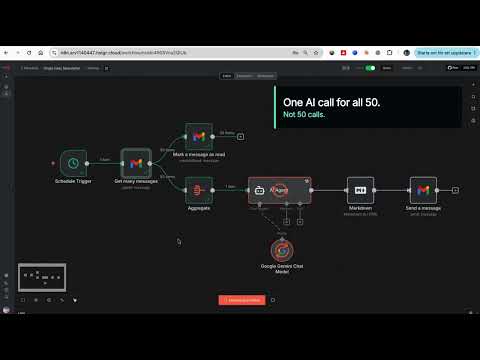
One email instead of 50: an n8n workflow that reads all my AI newsletters and sends me a single daily digest in under 2 minutes THE PROBLEM: I subscribe to dozens of AI newsletters. The Rundown, Superhuman, TLDR, The Neuron, AlphaSignal, TheSequence, Turing Post and many more. Reading them took hours every day, and most of them cover the same three stories. I wanted the coverage without the reading time. So I moved every subscription to a dedicated Gmail address and let n8n read that inbox for me. It has run daily since February 2026 and I now read one email a day instead of 50. STACK: n8n (hosted on Hostinger), Gmail, Google Gemini 2.5 Pro. HOW TO BUILD IT: STEP 1: Create a dedicated Gmail account and move every newsletter subscription to it. This one decision makes everything else simple. Your personal inbox stays clean and the workflow never touches mail that is not a newsletter. STEP 2: Schedule Trigger node, daily at 08:00. Set the workflow timezone (mine is Europe/Stockholm) or the trigger runs on server time. STEP 3: Gmail Get Many Messages node on the newsletter account. Filter by read status: unread. Return All: on. Simplify: OFF. That last toggle matters, see gotcha 2. STEP 4: Connect two branches off that node. Branch one is a Gmail Mark As Read node with message ID {{ $json.id }}. Unread is the whole state system: each run only fetches what arrived since the last run. No database, no date filters, no dedupe logic. STEP 5: Branch two is an Aggregate node. Aggregate the "html" field of every email into one array field called CombinedNewsletter. This means one AI call per day instead of one call per email. STEP 6: AI Agent node with a Google Gemini Chat Model attached (models/gemini-2.5-pro). Turn on Retry On Fail with 5000 ms between tries. The prompt: Below is all the news in html format. Only use what is provided; if the HTML looks cut off, still summarize everything you can see. {{ $json["CombinedNewsletter"].join('\n\n').substring(0, 250000) }} The substring cap is load bearing, see gotcha 1. System message (verbatim, numbering written as (1) so this form does not strip it): "You will receive ALL the AI newsletters from the past day in HTML format. Your task: (1) Extract every distinct news item (no duplicates, even if repeated in multiple newsletters). (2) For each item, find: a short, human-readable title, the best URL, a one-sentence summary (max 25 words). (3) Estimate popularity based on how many newsletters mention it. If an item appears only once, rank by how interesting the general public might find it. Output format (Markdown only): # Daily AI News Digest, then '## Top headlines' listing the 5 most popular/important items as 'Title Summary sentence', then '## More news' listing all remaining items in the same format. Rules: Always use Markdown links like Title, never show bare URLs. Do not skip any news item. Do not add any commentary, explanations, or closing text beyond the structure above." STEP 7: Markdown node, mode Markdown to HTML, destination key combinedHTML. STEP 8: Gmail Send node to your personal address. Subject: Here's ALL the AI News! {{now.toFormat('yyyy-MM-dd')}}. Wrap {{ json.combinedHTML}} in a full HTML document with inline CSS: white card, max-width 720px, system fonts, styled links. See gotcha 4. FOUR THINGS THAT COST ME HOURS: (1) Raw newsletter HTML broke Gemini. The workflow refused to execute with a payload limit error. Newsletter HTML is enormous: tracking pixels, nested tables, inline styles. Fifty of them concatenated is millions of characters. The .substring(0, 250000) cap in the prompt fixed it, and the "if the HTML looks cut off, still summarize" line tells the model how to handle the truncation. (2) Gmail's Simplify toggle is on by default and strips the message body. Gemini kept receiving empty or gutted content and no error explained why. Turn Simplify off to get the full html field. (3) Gemini rate limits AND timeouts both hit on big runs. Retry On Fail with a 5 second wait fixed both. Without it, one 429 kills the whole morning digest. (4) Sending the model's raw markdown as email looked broken in Gmail. Two part fix: a Markdown to HTML node, then a proper HTML template with CSS in the send node. RESULT: the latest real run turned 50 unread newsletter emails into one clean digest in less than 2 minutes (1 minute 27 seconds to be exact). Running every morning since February 2026. Honest failure mode: mark as read runs as a parallel branch, so if Gemini fails after all retries, that day's emails are already marked read and drop out of tomorrow's digest. I accepted that trade off. The alternative is duplicate items on every retry, and one missed day costs less than a digest full of repeats. Rebuild time: about 30 to 45 minutes if the dedicated inbox already exists.

Mansour Sarr
  • Gmail
  • Gemini
6